Create your first schema
Build a small schema with an enum and a record that refers to it. You will create definitions, connect a field, and inspect the saved YAML.
Before you start
Install the 0.1.0 VSIX in VS Code 1.90 or later.
Create an empty document
- Run Schema Salad: New Schema from the Command Palette.
- Save the file as
asset.salad.yaml.
The editor opens an empty canvas. The source starts as [].
Add an enum
- Right-click the canvas and choose Add → Enum.
- Click the new type's name, enter
AssetKind, and press Enter. - In the enum's value list, enter
imageand press Enter. Addtablethe same way.
You now have a named type with two literal string symbols.
Add a record and connect its field
- Right-click a different part of the canvas and choose Add → Record.
- Rename it to
Asset. - Click + Add field, enter
kind, and press Enter. - Drag the field's circular port to the
AssetKindcard and release.
The field type becomes AssetKind, and a reference arrow connects the cards. Leave Array and Nullable unchecked for this field.
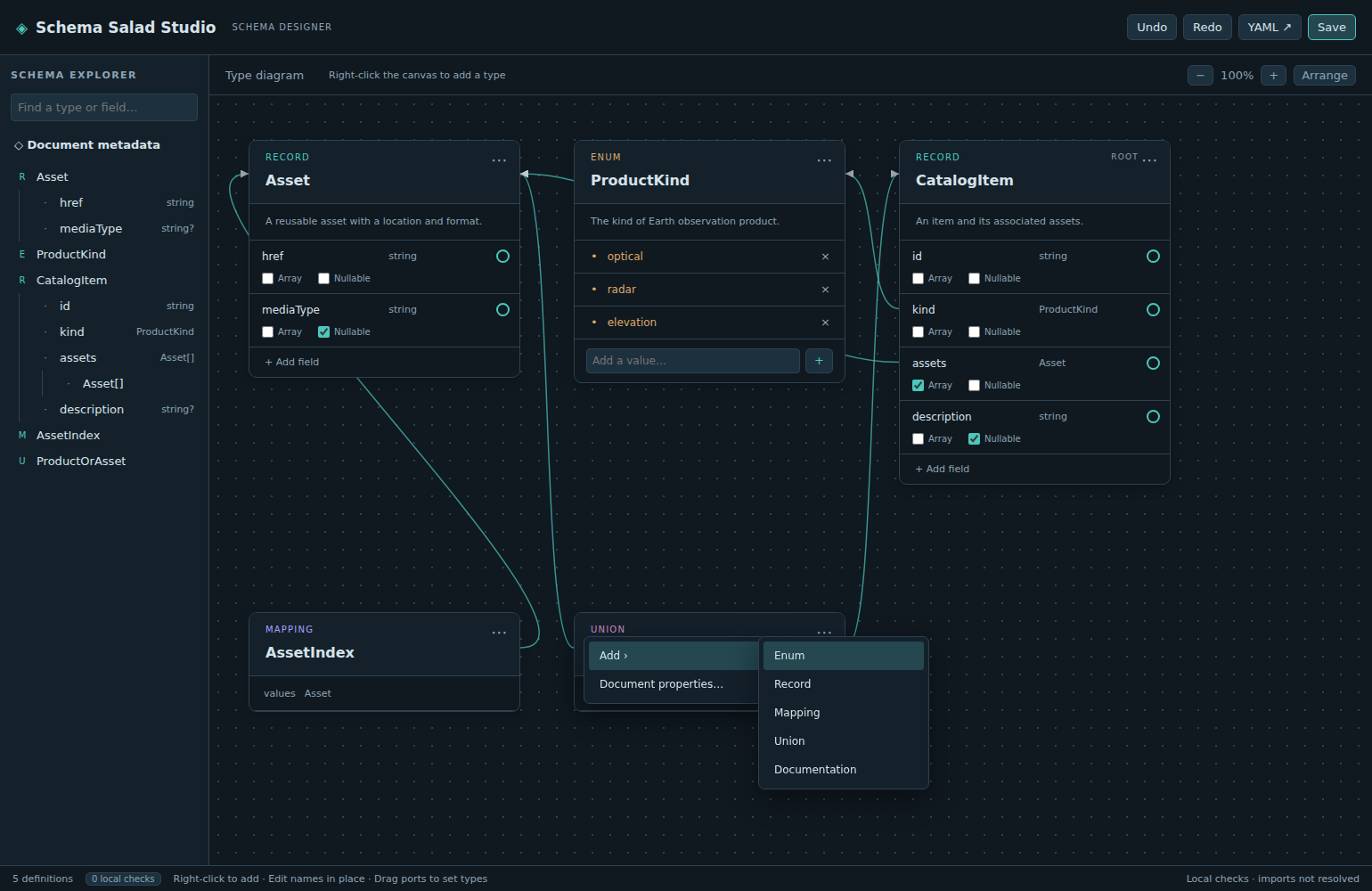
The screenshot illustrates the editor with a larger schema; your document has only two cards.
Save and inspect the source
Click Save or press Ctrl+S, then use YAML ↗ to view the document. It contains the equivalent of:
- name: AssetKind
  type: enum
  symbols:
    - image
    - table
- name: Asset
  type: record
  fields:
    - name: kind
      type: AssetKind
Additional properties or a different key order may appear. The enum precedes the record because the record depends on it.
You have created and saved a schema using the canvas. Next, set a default for kind, or explore other editing operations.